

21 Oct 2024 Automating Developer Environments with Dev Containers
Introduction
Development Containers (or Dev Containers for short) have been around for a few years now (since ~2019) and have reached a level of maturity where I’m now comfortable recommending their adoption. I’ve found that Dev Containers are a fantastic tool to help teams build a consistent and productive Developer Experience.
In this post I’ll cover what Dev Containers are, why you should use them and how to get started. While Dev Containers is an open specification that has growing cross-IDE support this post will focus primarily on using Dev Containers with Visual Studio Code (VS Code) as the IDE.
What are Dev Containers?
As hinted by the name Dev Containers builds upon containers (e.g. Docker) to automate your developer environment. Dev Containers allow you to define a pre-configured, containerized developer environment that integrates with your IDE (e.g. VS Code). The benefits of this include:
Easier onboarding of new team members
Setting up the development environment of some projects can be a nightmare, requiring following extensive documentation (if available) to manually install and configure a complex suite of tools. With Dev Containers it can be as simple as:
- Installing Docker, VS Code, and the VS Code Dev Containers extension on the host system (Windows, Mac, or Linux)
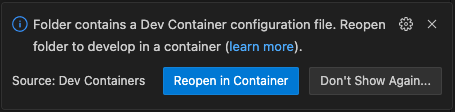
- Cloning the project, opening with VS Code, and clicking on the open with Dev Container prompt:

- This will build a Dev Container based on the configuration included in the project and once complete you’ll have a working developer environment ready to use.
Consistent IDE configuration, tooling and runtime versions
No more “it works on my machine!” Dev Containers provide a reproducible developer environment that can be versioned (i.e. with Git) and shared across a team. When a Dev Container configuration change is made team members will be prompted to rebuild the Dev Container:

Project environments are isolated from each other
Trying to switch between multiple projects when tooling is installed directly on the host system can be painful when version or configuration conflicts arise. With Dev Containers each project runs in its own lightweight, isolated environment making it straightforward to have multiple projects on the go at once.
How to configure a Dev Container
A Dev Container can be configured using a .devcontainer/devcontainer.json file in the root of your project. Here’s a simple example showing some useful features:
// .devcontainer/devcontainer.json
{
  "name": "example-devcontainer",
  "image": "mcr.microsoft.com/devcontainers/javascript-node:22",
  "features": {
    "ghcr.io/devcontainers-contrib/features/pre-commit:2": {}
  },
  "postStartCommand": "pre-commit install",
  "customizations": {
    "vscode": {
      "extensions": [
        "esbenp.prettier-vscode"
      ],
      "settings": {
        "editor.defaultFormatter": "esbenp.prettier-vscode",
        "editor.formatOnSave": true
      }
    }
  }
}
This defines an example Dev Container with the following properties:
- The Dev Container is built using a Node.js version 22 container image: mcr.microsoft.com/devcontainers/javascript-node:22
- For finer grained control a
Dockerfilecan be used instead of a pre-existing images: https://containers.dev/guide/dockerfile#dockerfile - It’s also possible to use a
docker-compose.ymlfile to run a multi-container developer environment (e.g. to run a db alongside a web server): https://containers.dev/guide/dockerfile#docker-compose
- For finer grained control a
- On top of the base image this example is using “features” to install pre-commit. Features provide a convenient way to install many common developer tools: https://containers.dev/features
- A “postStartCommand” is used to run
pre-commit installwhen the Dev Container starts to automatically install the git hook scripts pre-commit relies on to work. - The “customizations” section provides a space for third-party product configuration properties. In this example we configure VS Code to automatically install the esbenp.prettier-vscode extension into the Dev Container and to use it to auto format on save as the default formatter.
- The VS Code Dev Containers plugin includes a wizard which can guide you through creating a base Dev Container configuration for most popular programming languages. Example templates for various stacks are also available here: https://containers.dev/templates
Dev Container usage with VS Code
This diagram provides a view of how Dev Containers work when used with the VS Code IDE:

VS Code will mount your source code into the Dev Container and seamlessly run most aspects of your project using the Dev Container.
- When you open a terminal in VS Code it will attach to your Dev Container allowing you to run software provided by your Dev Container setup (e.g. node.js, python, etc.)
- VS Code extensions are installed into the Dev Container. This means when you run a test or use the debugger through the VS Code user interface it will use the tooling configured in your Dev Container.
- We you run a web server inside the Dev Container the port will be accessible on the host system via localhost. If you are building a website for example this allows the host system’s web browser to easily connect to the website running inside the Dev Container.
Not for all projects
Dev Containers work well for developing web and enterprise software targeting deployment to Linux-based server environments. This accounts for a high proportion of modern projects and when combined with VS Code’s wide range of extensions most programming language ecosystems are reasonably well supported. For applications targeting deployment to other environments, e.g. native desktop and mobile app projects, I’d advise using alternative approaches for now.
Other Tips
- It’s possible to reuse your Dev Container configuration for your continuous integration and deployment pipelines. The Dev Container CLI can be used to build and publish your Dev Container to a container repository for reuse: https://code.visualstudio.com/docs/devcontainers/devcontainer-cli
- You can run Docker based builds inside a Dev Container (i.e. Docker in Docker). There’s a feature available to configure this easily: https://github.com/devcontainers/features/tree/main/src/docker-in-docker
- Dev Containers can be combined with the Visual Studio Code Remote – SSH extension to run your developer environment on a remote server. There are also commercial remote development solutions available that natively support Dev Containers like GitHub Codespaces.
Other Resources
- For more detail see VS Code’s “Developing inside a Container” guide: https://code.visualstudio.com/docs/devcontainers/containers
- For a video introduction to Dev Containers see: My Favorite Way To Handle Dev Environments | VS Code Devcontainers (https://www.youtube.com/watch?v=SDa3v4Quj7Y)
- To get the most out of Dev Containers it’s useful to have an understanding of Docker, this free course may be useful: https://docker-curriculum.com/

No Comments